How to find out what eating your Android device's battery?
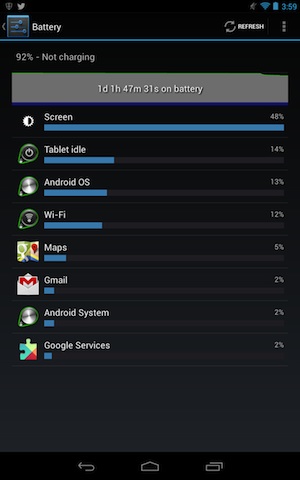
In Android, you can go to Settings -> Battery and check what is the most battery consuming application. If there has apps that you don't really need it, you should close that app.

1. Reduce Screen Brightness
The mostly possible is the Screen Brightness of your Android device that consumes most of your device's battery. So, reduce it by go to Settings -> Display -> Brightness and reduce it to minimum (by slide the slider to the left).
You can reduce the Screen Timeout to save battery by go to Settings -> Display -> Screen Timeout and select the minimum value.
2. Turn off Bluetooth, GPS
If you don't have any Bluetooth device connected to your Android phone, then turn off the Bluetooth by go to Settings -> Bluetooth.
The GPS is our favorite feature, we can use it to find the Direction at the strange places or Check-in in some social network such as Facebook. But this service is not necessary, especially when you want to save battery for your device, so turn off this feature by go to Settings -> Location Access.
3. Have a look at Wi-Fi
If you are in the non Wifi area, turn off the Wifi to avoid the device looking for Wifi connection that consume power of your device battery.
But note that when you are in the Wifi area, you should turn off the 3G/4G connection because the using Wifi consume less energy than Data Connection (GPRS/3G/4G).
4. Use the Battery Manager application
There are a lot of application on Google Play Store that can help you optimize your battery. In my opinion, you can use Battery Doctor (FREE). This app can help you turn on/off device features such as Wifi, Data Connection, it also help you to reduce the screen brightness...Or you can use the best choice of Techlicious is Juice Defender. This app has 3 version: FREE, Plus ($1.99) and Ultimate ($6.24).
5. Update your device software/firmware frequently
When you update your device software/firmware, it can be the Bug Fixes, or Improvements that help you device run smoothly and reduce battery consumption.
6. Uninstall unused app
Even when you don't use those app, it can be running in background. So when you don't want to use the app anymore, uninstall it as soon as possible.
7. Don't run too much app
The multitasking of Android is great, but it has a problem: background processes will consumes battery rapidly. So when you finish using an app, turn it off immediately.
Other advices is:
- Don't use animated background
- Limit using the Widget on Home Screen. Using too much Widget may cause your device running slow and draining battery.
- Turn off Vibrate if possible
If you have any suggest, feel free to comment below.


0 nhận xét:
Đăng nhận xét